

Key Takeaways
Start here
What's Actually Inside a Smartphone
Next
SIM Cards, Carriers, and Connectivity
Then
Operating Systems and App Stores
When you're ready
Essential First-Day Setup Steps
Final step
Keeping Your Phone Safe and Lasting Longer
What's Actually Inside a Smartphone
A smartphone is essentially a compact computer that fits in your pocket. At its core, it has a processor (the chip that runs everything), RAM (short-term memory that keeps apps running smoothly), and internal storage (where your photos, apps, and files live permanently). The screen you interact with is a touchscreen that replaces the mouse and keyboard you'd find on a desktop.
Understanding these basics removes a lot of mystery. When a phone feels slow, it's often the processor or RAM under strain. When you get a "storage full" warning, it's your internal storage that needs clearing. You don't need to be a technician — you just need to know what question to ask.
Processor (CPU)
The main chip inside your phone that runs all software. A faster processor means apps open quicker and the phone handles more tasks at once.
RAM
Short-term memory that holds apps open while you're using them. More RAM means you can switch between apps without them reloading.
Internal storage
The permanent space on your phone where photos, apps, and files are saved — similar to a hard drive on a computer.
Operating system (OS)
The core software that runs your phone and lets you interact with it. iOS and Android are the two main smartphone operating systems.
SIM card
A small physical chip that registers your phone on a carrier's cellular network, giving you a phone number and mobile data.
eSIM
A digital SIM built into the phone's hardware. You activate it remotely through your carrier — no physical card needed.
Cloud backup
A copy of your phone's data — photos, contacts, settings — stored on remote servers via the internet, so it's safe if your phone is lost or damaged.
App permissions
Requests an app makes to access parts of your phone, such as your camera, microphone, or location. You can approve or deny each one.
SIM Cards, Carriers, and Connectivity
Your phone connects to the outside world in two main ways: Wi-Fi (a wireless internet connection, like the one in your home or a coffee shop) and cellular (the mobile network operated by carriers such as Verizon, AT&T, or T-Mobile). To use cellular, you need a SIM card — a small chip that identifies your account on the carrier's network.
Many newer phones support an eSIM, a digital SIM built directly into the hardware. There's no physical card to lose or insert; you activate it through your carrier. Some phones allow both a physical SIM and an eSIM at the same time, which is useful if you want separate personal and work numbers on one device.
Wi-Fi vs. cellular data
Many first-time users aren't sure which connection they're using at any moment. Look at the status bar at the top of your screen — a Wi-Fi symbol means you're on a local wireless network, while bars or a signal icon means you're using cellular data. Knowing this helps you avoid unexpected data overages.
Your carrier plan determines how much data, talk time, and texting you have each month. If you mostly use your phone at home or work over Wi-Fi, a lower-data plan may suit you fine.
Operating Systems and App Stores
Every smartphone runs an operating system (OS) — software that manages the hardware and lets you interact with the phone. The two dominant options are iOS (made by Apple, found only on iPhones) and Android (made by Google, used by many different manufacturers). Both accomplish the same everyday tasks; the differences lie in interface design, default apps, and which ecosystem of services they tie into.
Apps — individual programs for things like navigation, banking, or messaging — are downloaded through an app store. Apple devices use the App Store; Android devices use Google Play. Both stores review apps for security before listing them. Stick to these official stores and avoid installing apps from unknown websites, which carry higher security risks.
If you're also exploring other devices, our guide on buying your first desktop PC covers how operating systems work in that context too.
Start with a small number of apps
It's tempting to download everything at once, but starting with just the essentials — messaging, email, maps, and a browser — helps you learn the phone without overwhelm. Add apps gradually as you identify a genuine need for them. Fewer apps also means less drain on your battery and storage.
Essential First-Day Setup Steps
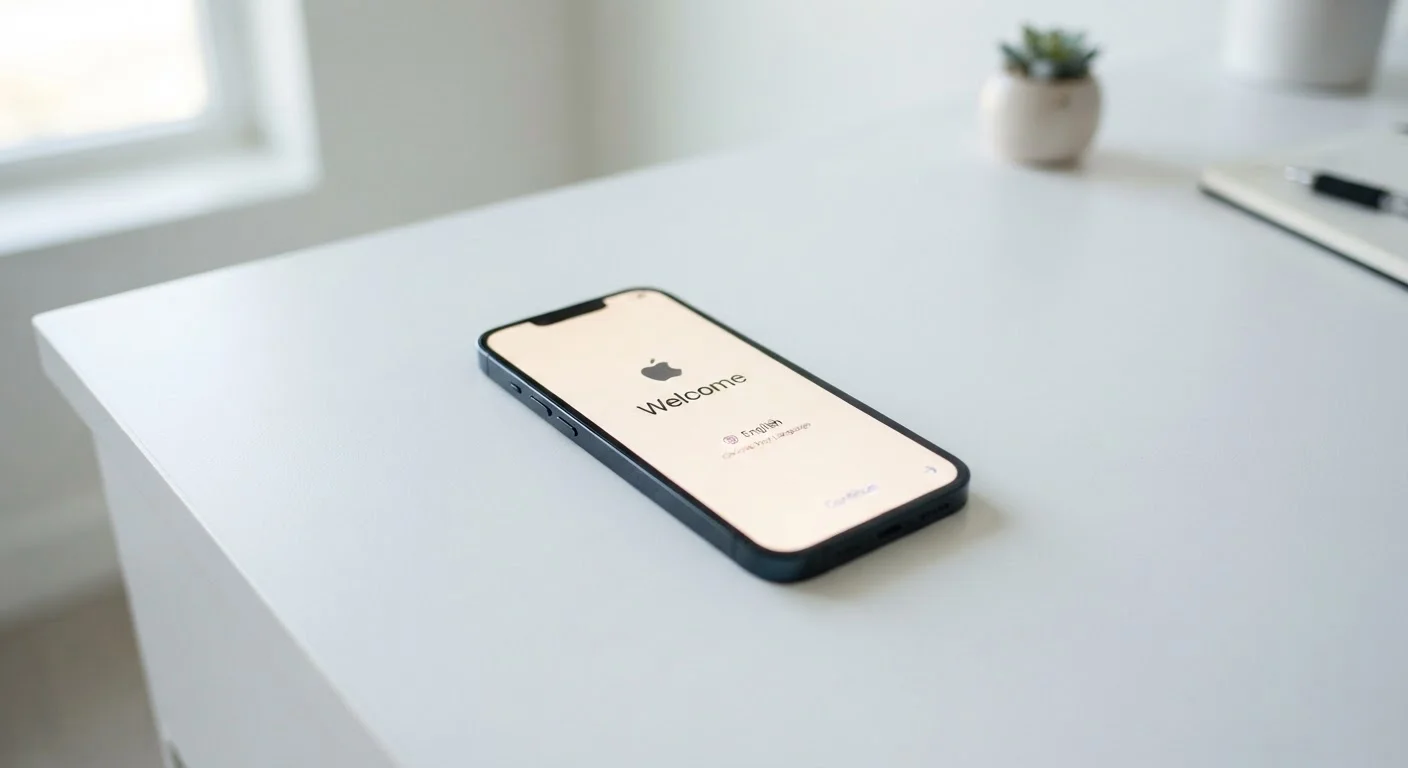
When you power on a new smartphone, a setup wizard walks you through the basics. Here's what each step actually means:
- Create or sign in to an account: On iPhone, this is your Apple ID. On Android, it's a Google account. This account links your phone to cloud backups, the app store, and services like maps or email. Treat these credentials like a password to your front door.
- Set a screen lock: Choose a PIN, password, pattern, or biometric option (fingerprint or face recognition). This is your first line of defense if the phone is ever lost or stolen.
- Connect to Wi-Fi: Do this before downloading anything. It avoids using your cellular data during large downloads like system updates.
- Enable automatic updates: Software updates patch security vulnerabilities. Keeping this on means your phone gets protected without you having to remember.
Once setup is complete, it's worth reviewing your privacy settings. Our article on mobile privacy settings most users never touch is a practical next step.
Keeping Your Phone Safe and Lasting Longer
A smartphone is a meaningful investment, and a few habits from day one make a real difference in how long it stays useful.
Physical protection: A case and screen protector reduce damage from drops. This is straightforward but easy to skip — most phone screens are glass and will crack.
Battery care: Lithium-ion batteries — the type in virtually all smartphones — have a finite number of charge cycles. Avoid habitually draining the battery to zero or leaving it at 100% indefinitely. Most phones now have built-in battery health tools and optimized charging modes worth enabling.
App permissions: Each time you install an app, it may ask for access to your camera, microphone, location, or contacts. Grant only what the app genuinely needs. A flashlight app has no reason to access your contacts.
Taking a structured approach to new technology pays off in every area — much like building a routine as a first-time car owner, consistent small habits prevent bigger problems later.
Avoid unofficial app sources
Only install apps from the official app store for your phone's operating system. Apps distributed through third-party websites or links in messages can contain malware that compromises your personal data. If an app isn't available in the official store, treat that as a red flag.