

Tech & Electronics

The Mobile Privacy Settings Most Users Never Touch

Share
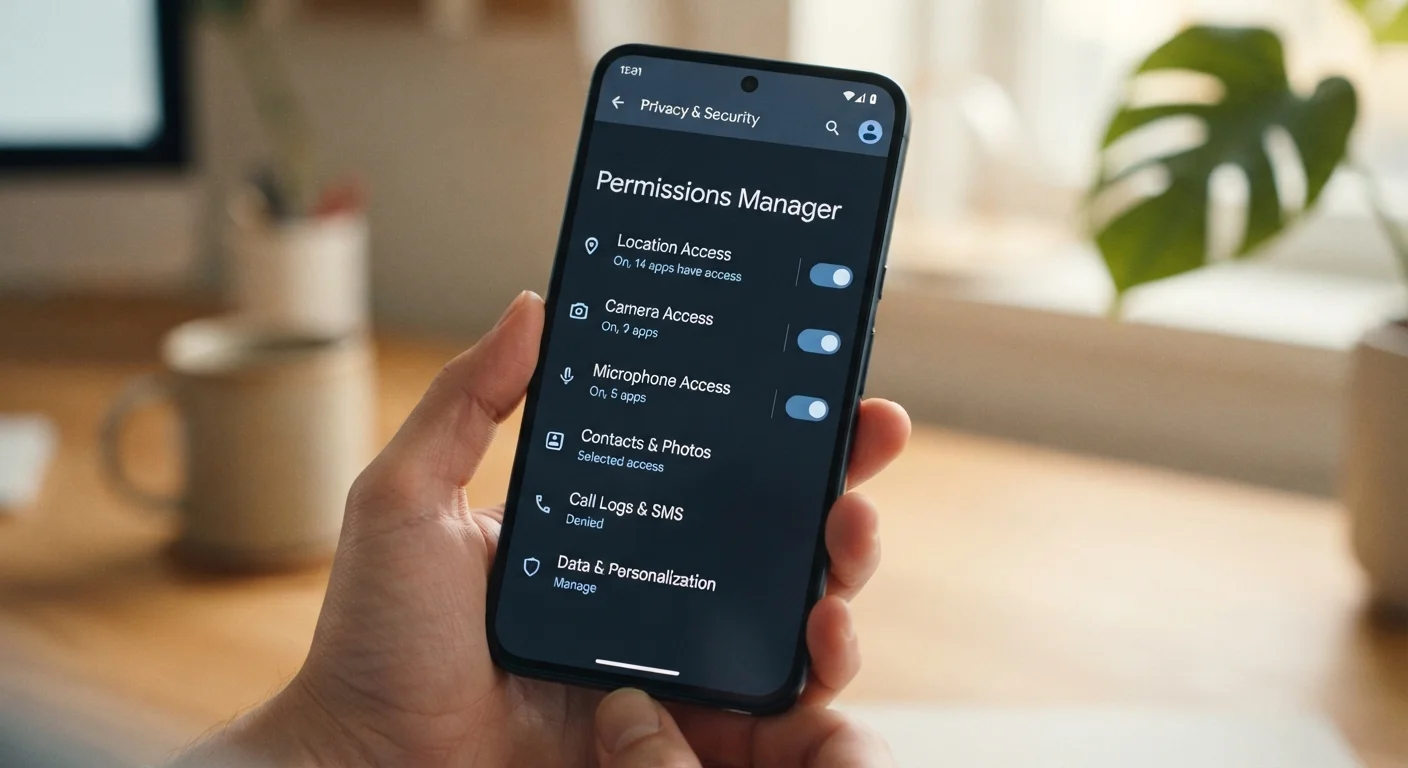
Smartphone screen showing a privacy settings menu with permission toggles for apps

Key Takeaways

Most phones ship with permissive defaults that allow broad app access to your location, camera, and contacts.
Both Android and iOS offer granular permission controls most users have never opened.
Reviewing privacy settings takes under an hour and requires no technical expertise.
Some settings — like ad tracking and network diagnostics — are buried several menus deep by design.
Periodic re-checks matter because app updates and OS upgrades can reset or introduce new permissions.
20–45 min

Summary

18 items · 20–45 minutes

Why Default Settings Aren't Designed With Privacy First

When you set up a new phone, the defaults are generally tuned for convenience and maximum app functionality — not privacy. Apps request permissions broadly, location services stay on continuously, and diagnostic data flows to developers without much notice to users. Most people tap through setup screens quickly and never revisit these choices.

This checklist walks through the settings worth auditing on both Android and iOS. You don't need to be technically minded to do this — just patient and methodical. If you're also thinking about privacy across your connected devices at home, the Smart Home Privacy framework covers similar principles for a different context.

Location Permissions

Open Settings > Privacy (iOS) or Settings > Location (Android) and review which apps have "Always" location access — switch any non-navigation apps to "While Using" or "Never." Must
Disable "Precise Location" for apps that only need general area context (such as weather apps), using the per-app Precise Location toggle available on both platforms. Should
Turn off system-level location history or timeline features (Google Maps Timeline, for example) if you don't actively use them. Should

Camera, Microphone & Contacts

Audit camera and microphone permissions for every app listed under Settings > Privacy — revoke access for any app where the need isn't obvious. Must
Review contacts access and limit it to apps that genuinely require it (messaging apps, dialers); revoke it from games, utilities, and shopping apps. Must
On iOS, use the App Privacy Report (Settings > Privacy & Security > App Privacy Report) to see how frequently apps are actually using camera, microphone, and location access. Nice to have

Ad Tracking & Personalization

On iOS, go to Settings > Privacy & Security > Tracking and disable "Allow Apps to Request to Track" to block cross-app advertising data collection. Must
On Android, go to Settings > Google > Ads and opt out of ads personalization, then reset your advertising ID. Must
Review personalized ad settings within individual apps (social media platforms especially) in their own in-app privacy menus, since OS-level controls don't always reach first-party data use. Should

Diagnostics & Usage Data Sharing

On iOS, go to Settings > Privacy & Security > Analytics & Improvements and turn off "Share iPhone Analytics" and "Share with App Developers." Should
On Android, go to Settings > Google > Usage & Diagnostics and disable diagnostic data sharing if you prefer not to send this information. Should
Check individual app settings for in-app analytics or "help improve this app" toggles, which often default to on. Nice to have

Lock Screen & Biometric Access

Ensure your lock screen does not surface notification content (message previews, email subjects) from sensitive apps — set these to "Show When Unlocked" only. Must
Verify that biometric authentication (Face ID, fingerprint) is required for password managers, banking apps, and any app storing sensitive data. Must
Set a lock screen timeout of no more than 30 seconds for idle periods; longer windows leave an unlocked phone exposed if misplaced. Should

Cloud Sync & Backup Permissions

Review which apps have permission to write data to iCloud (iOS) or Google Drive backup (Android) — limit this to apps whose data you actually want preserved. Should
Disable automatic photo sync to cloud services for apps you don't intend to use as your primary photo backup solution, to avoid duplicating data in unexpected places. Should
Periodically audit what third-party apps have been granted access to your Google or Apple account via OAuth — revoke connections for services you no longer use. Nice to have

What You'll Need Before You Start

No special tools are required — just your phone, about 20 to 45 minutes, and a willingness to tap through a few nested menus. Understanding the basics of how Android and iOS differ in daily use can help frame what you find; the Android vs. iOS comparison is a useful reference if you've recently switched platforms.

Required

Your Phone's Settings App

The primary interface for all permission and privacy controls on both Android and iOS — no download required.

Optional

iOS App Privacy Report

Built-in iOS tool that logs how often apps access sensitive data like location, camera, and microphone over a 7-day window.

Optional

Google Account Permissions Dashboard

Web-based dashboard at myaccount.google.com that shows which third-party apps have access to your Google account data.

Optional

Apple ID Privacy Settings (appleid.apple.com)

Web portal where you can review and revoke third-party app access linked to your Apple ID.

Revoking Permissions Can Break App Features

Restricting a permission doesn't delete your data from a developer's servers — it only prevents new data collection going forward. Some app functions may stop working when permissions are revoked; for example, removing location access from a delivery app will prevent address auto-detection. Evaluate the trade-off for each app individually rather than applying a blanket approach.

After the Audit: Keeping Settings Where You Left Them

Privacy settings don't always stay put. Major OS updates occasionally introduce new data-sharing toggles set to opt-in by default. App updates can request new permissions without announcing it prominently. A quick re-check every few months — especially after a significant OS upgrade — is a reasonable habit. If you're preparing to hand a phone off to someone else, the guide on preparing a phone before selling covers the full reset process, which goes further than a permission audit alone.

OS Updates Can Reset Your Choices

Both Android and iOS occasionally introduce new privacy features or data-sharing options during major updates — and these often default to the more permissive setting. After any significant OS upgrade, it's worth running through this checklist again. This is especially important if you use apps that handle financial, health, or communications data.

Tech & Electronics Editorial Team is the collective byline for our editorial team and contributor network. Articles published under this byline or an editorial pen name are researched, written, and reviewed according to our editorial standards for clarity, consistency, and independence before publication.

View all articles by Tech & Electronics Editorial Team →
Disclaimer: The content on this site is for informational purposes only and is not a substitute for professional advice. Always consult a qualified professional for guidance specific to your situation.