

Key Takeaways
The Root of the Confusion
Walk into any electronics conversation and you'll hear it: someone describing a slow laptop says they need "more memory," when what they actually mean could be either RAM or storage — or sometimes both. The confusion is understandable. Both are measured in gigabytes, both affect performance, and marketing copy rarely bothers to clarify the difference. But the two serve fundamentally different roles inside your machine.
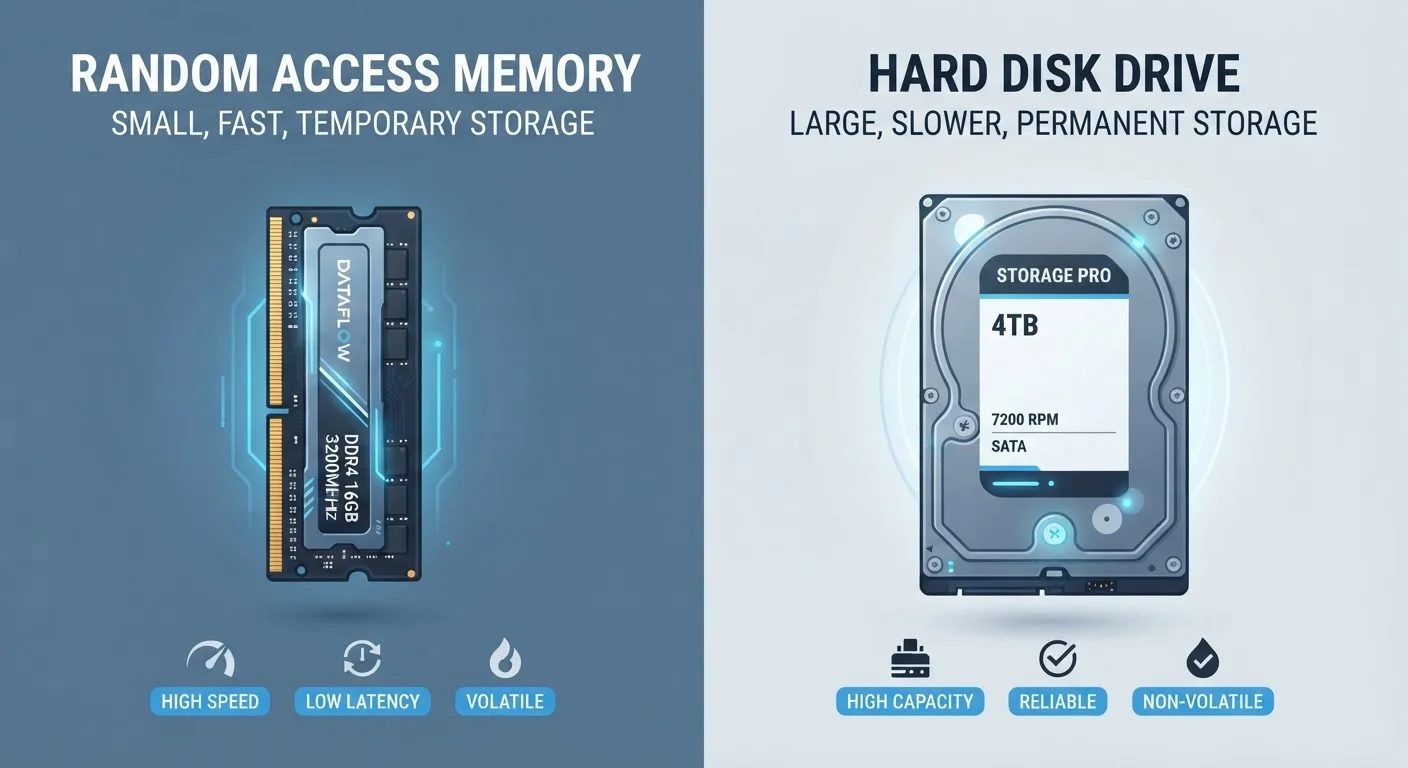
RAM (Random Access Memory) is your computer's short-term workspace — the mental desk where active tasks are spread out. Storage, whether a traditional hard drive (HDD) or a solid-state drive (SSD), is where everything lives permanently: your operating system, apps, photos, and documents. Think of RAM as your kitchen counter and storage as your pantry. A bigger counter means you can prep more dishes simultaneously; a bigger pantry means you can own more ingredients.
For a deeper look at how these specs appear on product pages, see our complete laptop spec sheet guide.
Common Myths — Corrected
These misconceptions show up constantly in forums, retail stores, and buying decisions. Getting them straight can save you money and frustration.
Myth
"I need more memory" always means I need more storage space.
Fact
RAM and storage are distinct components. "Memory" technically refers to RAM, not file storage.
The word "memory" in computing specifically refers to RAM — the volatile, fast-access workspace the processor uses right now. Storage (HDD or SSD) is correctly called "storage" or "disk space." When someone says their computer is slow because it's "out of memory," they may actually be describing a RAM shortage causing the system to use the much-slower drive as overflow. That's a different problem from simply running out of space to save files, and the fix is different too.
Myth
More storage means a faster computer.
Fact
Storage capacity alone does not speed up a computer. Storage type and RAM levels are far more relevant to speed.
Buying a 2TB drive instead of a 512GB drive won't make apps open faster or multitasking smoother. What does affect speed is the type of storage (SSDs are dramatically faster than HDDs) and how much RAM is available. A nearly full drive can slow some operations down, but simply having more empty space beyond a reasonable threshold doesn't accelerate performance. Speed and capacity are separate dimensions of storage.
Myth
RAM stores your files, so losing power erases your documents.
Fact
RAM is erased when power is cut, but your files are saved to storage, which retains data without power.
RAM is volatile — it only holds data while the machine is running. When you shut down or lose power, everything in RAM disappears. That's why unsaved work vanishes in a crash. Your files, photos, and installed apps live on the SSD or HDD, which is non-volatile storage that persists indefinitely without power. Saving a document moves it from RAM (temporary) to storage (permanent).
Myth
If a laptop has 256GB, that's how much RAM it has.
Fact
256GB almost always refers to storage capacity. Consumer laptops typically ship with 8GB to 32GB of RAM.
This is one of the most common spec-reading errors. A figure like "256GB" on a budget laptop refers to its SSD — the storage drive. RAM on modern consumer laptops typically ranges from 8GB to 32GB; a laptop advertising 256GB of RAM would be an unusual, high-end workstation configuration. When evaluating a spec sheet, look at the specific labels: RAM will be listed in GB with a memory type (e.g., DDR4, LPDDR5), while storage will reference SSD or HDD. See how these same numbers appear on phone spec sheets for a parallel breakdown.
Myth
Upgrading RAM and upgrading storage are both straightforward DIY tasks.
Fact
Storage upgrades are often feasible, but RAM is frequently soldered onto modern laptops and cannot be added or swapped.
Older laptops often had accessible RAM slots allowing users to swap in higher-capacity sticks. Many current ultrathin laptops and budget models solder RAM directly to the motherboard to save space and reduce cost, making it permanently fixed at the factory configuration. Storage upgrades via an M.2 slot are more often possible, though some manufacturers also solder SSDs. Before purchasing, check the manufacturer's documentation or a reputable teardown to confirm whether the component you care about is upgradeable.
What the Numbers Actually Mean at Purchase Time
When comparing laptops, you'll typically see RAM listed as something like "16GB DDR5" and storage as "512GB SSD." Those are separate specs describing separate hardware, though both use the gigabyte unit.
8–16GB
Typical RAM range in consumer laptops
Most mainstream laptops sold for general use ship with 8GB to 16GB of RAM, according to typical retail configurations across major manufacturers.
~5–10×
Speed difference: SSD vs. HDD
SSDs (solid-state drives) commonly deliver sequential read speeds 5 to 10 times faster than traditional spinning hard drives, meaningfully affecting boot and load times.
512GB
Common baseline storage in mid-range laptops
A 512GB SSD has become a widely offered baseline storage configuration in mid-range consumer laptops, though actual available space after OS installation is lower.
A machine with 8GB of RAM and a 512GB SSD is not the same as one with 16GB of RAM and a 256GB SSD — even if the total gigabyte count is similar on paper. The first config gives you less multitasking headroom; the second gives you less long-term file space. Neither is universally better; it depends entirely on how you use the device. If you keep a dozen browser tabs open alongside a video call and a spreadsheet, RAM is your bottleneck. If you shoot a lot of video or keep a large music library, storage matters more.
Also worth knowing: many modern laptops solder RAM directly to the motherboard, meaning the amount at purchase is the amount you're stuck with. Storage is more often upgradeable, but not always. Which specs predict real-world performance covers this trade-off in practical terms. Smartphone buyers face a similar dynamic — our guide to why phone storage fills faster than expected explains why that 128GB figure disappears quickly.
Don't Assume a Spec Is Upgradeable
Before buying a laptop expecting to add RAM or storage later, verify the specific model's upgrade path — not just the product line. Many laptops in the same family differ in whether components are soldered. Manufacturer spec pages and independent teardown sites are your most reliable sources for this information. Assuming upgradeability and being wrong is a costly mistake.